
DNS Speed Test: Find the Fastest Server for Gaming & Browsing
Is your internet feeling sluggish? Experiencing lag while gaming? The problem might not be your bandwidth—it could be your DNS.
Use our DNS Speed Test tool above to benchmark the world’s top providers for your specific location and find the fastest DNS.
Test latency to Global DNS Providers
Why Run a DNS Test
The Domain Name System (DNS) is the internet’s phonebook, translating domains like google.com into IP addresses. A slow ISP DNS means delays in every site load.
Our DNS benchmark identifies low-latency providers, delivering:
- Faster Browsing: Pages load instantly.
- Lower Gaming Ping: Cut lag in Valorant, CS:GO, Fortnite—Cloudflare (1.1.1.1) tops global charts at 11ms avg query time.
- Better Privacy & Security: No data selling, malware blocking with Quad9.
Run DNS Speed Test Now – No install needed!
How Our DNS Speed Test Works
Browser-based using DNS-over-HTTPS (DoH) for secure, accurate results:
- Precise Measurements: Real-time latency from your location to servers.
- Zero Downloads: Fully in-browser.
- Real-World Simulation: Tests domains like Google, YouTube, Amazon.
Tests 15+ providers including Cloudflare, Google, Quad9, OpenDNS, Gcore, and more.
Best DNS Servers: Speed Test Rankings
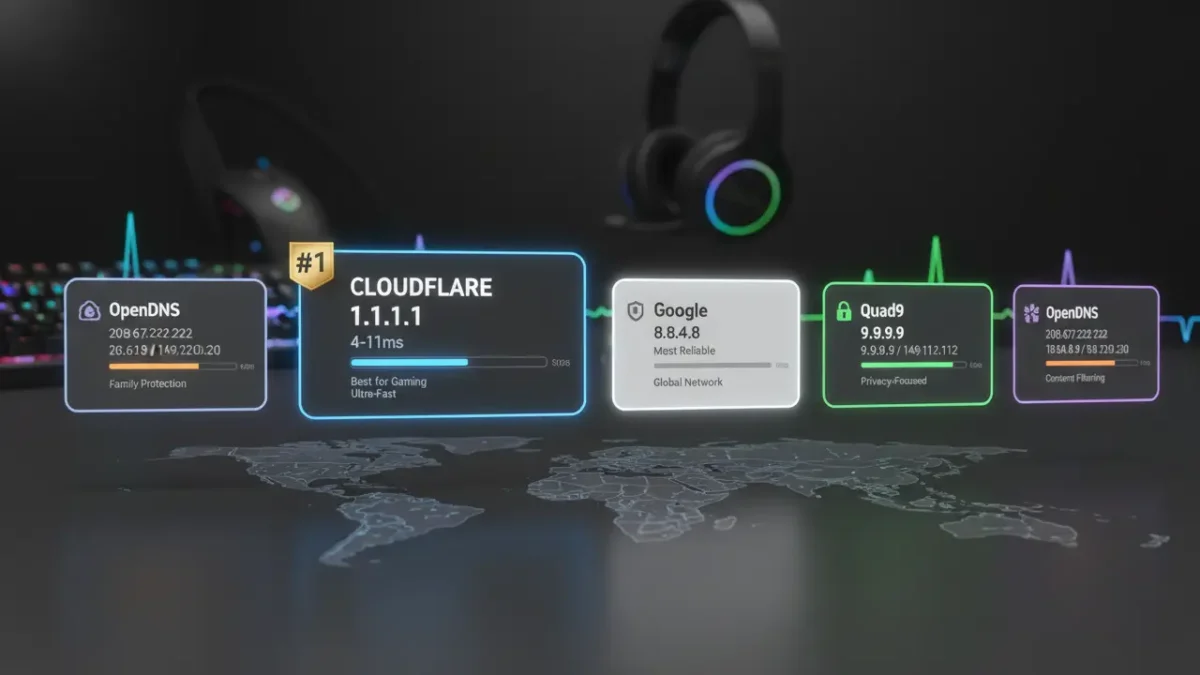
Based on global benchmarks like DNSPerf, here’s the breakdown:
| Rank | Provider | Primary DNS | Best For | Avg Query Time (Global)* |
|---|---|---|---|---|
| 1 | Cloudflare | 1.1.1.1 | Gaming & Speed | 11ms |
| 2 | Google Public DNS | 8.8.8.8 | Reliability | 19ms |
| 3 | Quad9 | 9.9.9.9 | Security | 22ms |
| 4 | OpenDNS | 208.67.222.222 | Families & Filtering | ~23ms |
*Avg from DNSPerf (200+ locations). Your results may vary—test now!
Pro Tip for Gamers: Want the ultimate low-ping setup? Read our guide on the Best DNS Servers for Gaming to Reduce Lag.
Test DNS Speed → Switch → Enjoy faster internet!
How to Change DNS Settings (Quick Guides)
After your test picks a winner:
Windows 11/10
- Settings > Network & Internet.
- Select Wi-Fi or Ethernet > Edit DNS.
- Switch to Manual > Enter Preferred DNS (e.g., 1.1.1.1) & Alternate (1.0.0.1).
- Save & restart connection.
macOS Sonoma/Ventura
- System Settings > Network.
- Select connection > Details > DNS tab.
- + to add IPs > Apply.
Android 15+
Settings > Network & Internet > Private DNS > Enter hostname (e.g., one.one.one.one for Cloudflare).
iOS 18+
Settings > Wi-Fi > (i) > Configure DNS > Manual > Add server.
Flush DNS cache post-change: Windows (ipconfig /flushdns), Mac (sudo dscacheutil -flushcache).
Run Free DNS Speed Test – Optimize your connection in seconds!
FAQs about Fastest DNS Server
What is the best DNS for gaming?
For most users, Cloudflare (1.1.1.1) offers the lowest latency, which helps reduce lag in games like Valorant, Fortnite, and Call of Duty. However, running our benchmark is the only way to know for sure, as “best” depends on your physical distance to the server.
Does changing DNS increase download speed?
No. Changing your DNS will not increase your maximum download bandwidth (Mbps). However, it will make websites start loading faster (snappier browsing) and can fix buffering issues caused by ISP throttling.
Is it safe to use public DNS servers?
Yes, providers like Cloudflare, Quad9, and Google are generally more secure than your default ISP (Internet Service Provider) DNS. They support encryption protocols like DNS-over-HTTPS (DoH) which prevents spying on your browsing history.
How do I test my DNS speed?
You can test your DNS speed by using a browser-based benchmark tool. Simply click the ‘Start Benchmark’ button on our DNS Speed Test page. The tool measures the latency (ping) to major providers like Google, Cloudflare, and OpenDNS via HTTPS.
Does DNS affect gaming ping?
Yes, DNS affects the time it takes to resolve the game server’s IP address. While it won’t change the physics of distance, a faster DNS resolves connections quicker and can route traffic more efficiently, potentially lowering perceived latency.