How to Enable TPM 2.0 for Gaming (Valorant, Call of Duty, Cyberpunk) – Complete BIOS Guide for ASUS, MSI & Gigabyte
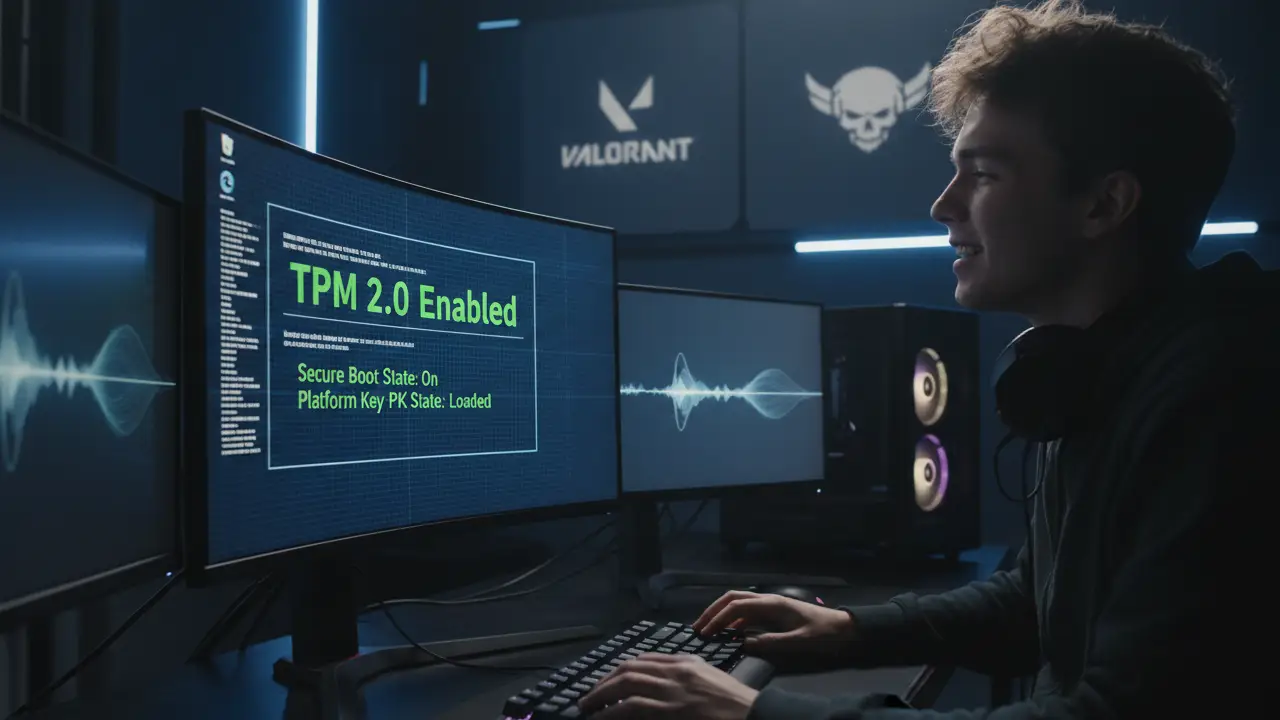
If you’re trying to play modern PC games like Valorant, Call of Duty: Warzone, or Cyberpunk 2077 and you will see the error like “Enable TPM 2.0“, you’re not alone. Since Windows 11 and advanced anti-cheat systems became standard, TPM 2.0 is no longer optional for gamers—it’s a requirement.
This guide explains what TPM 2.0 is, why games need it, and exactly how to enable TPM 2.0 on ASUS, MSI, and Gigabyte motherboards, even if you’ve never touched BIOS settings before.
JUMP LIST
- What Is TPM 2.0 and Why Games Require It?
- How to Check If TPM 2.0 Is Enabled on Your PC
- Intel vs AMD TPM Explained (Important)
- Step-by-Step Guide: Enabling TPM 2.0 on ASUS Motherboards
- Step-by-Step Guide: Enabling TPM 2.0 on MSI Motherboards
- Step-by-Step Guide: Enabling TPM 2.0 on Gigabyte Motherboards
- How to Enable Secure Boot for Valorant, Call of Duty and Others
- Troubleshooting Common TPM 2.0 Problems (And Fixes)
- FAQs about Enable TPM 2.0
- Final Verdict
What Is TPM 2.0 and Why Games Require It?
TPM stands for Trusted Platform Module 2.0 is a hardware-based security feature that securely stores encryption keys, system credentials, and integrity data. It helps prevent:
- Kernel-level cheating
- Memory injection attacks
- Spoofed system files
- Unauthorized firmware changes
Why TPM 2.0 Is Required for Gaming
Modern games use advanced anti-cheat systems that rely on secure boot and hardware-level trust.
| Game | Why TPM 2.0 Is Needed |
|---|---|
| Valorant | Riot Vanguard requires TPM + Secure Boot |
| Call of Duty (MW, Warzone) | Kernel-level anti-cheat protection |
| Cyberpunk 2077 | Windows 11 stability & security optimization |
| Fortnite | Anti-cheat integrity checks |
Riot Games officially confirmed that TPM 2.0 + Secure Boot is mandatory on Windows 11 for Valorant.
Source: https://support-valorant.riotgames.com
How to Check If TPM 2.0 Is Enabled on Your PC
Before diving into BIOS settings, verify your TPM status:
Method 1: Using Windows TPM Tool
- Press Windows + R
- Type
tpm.msc - Press Enter
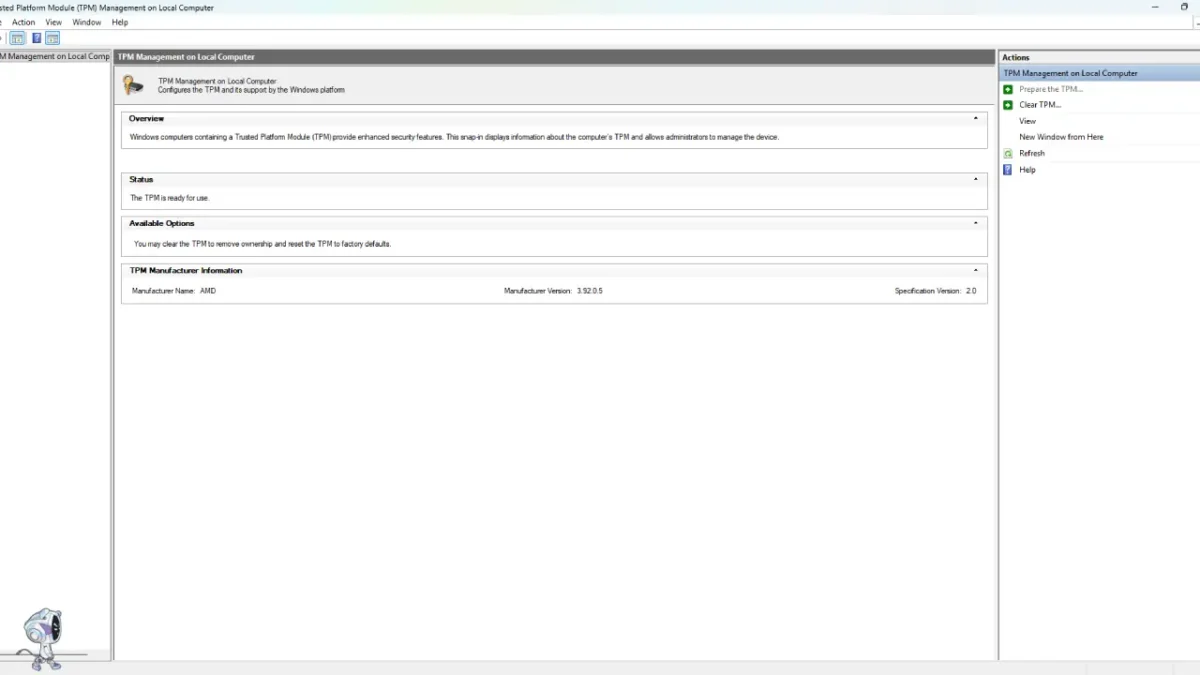
If you see:
- Status: The TPM is ready for use
- Specification Version: 2.0
➡️ You’re good to go.
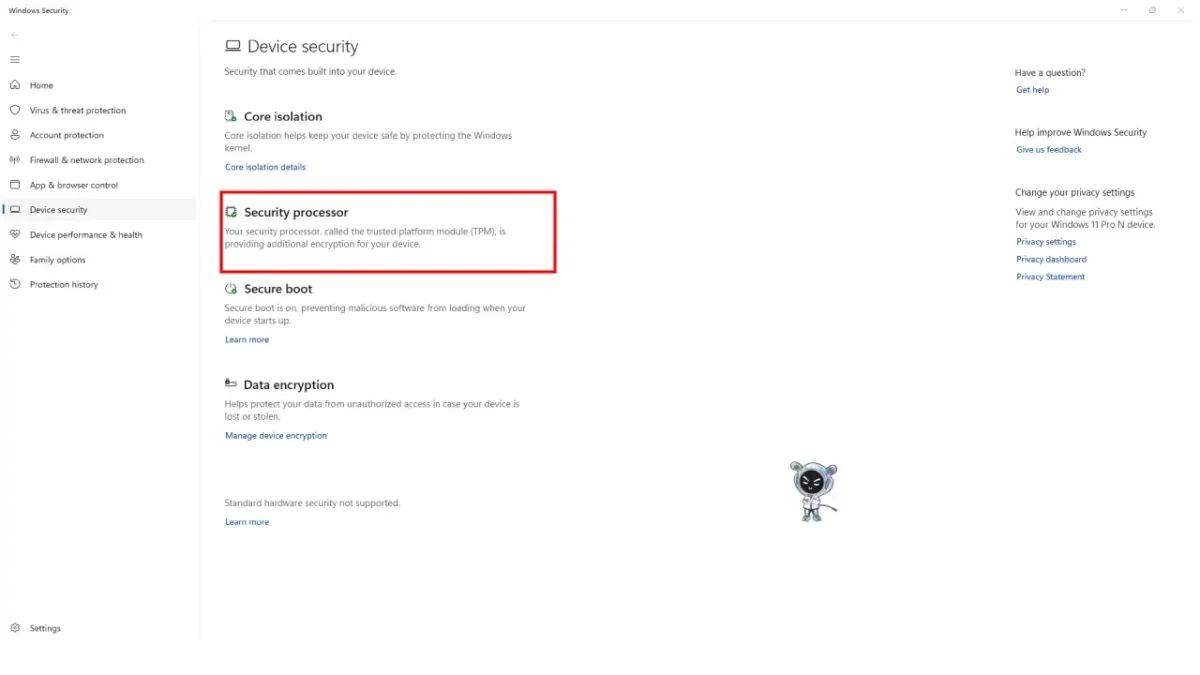
Method 2: Windows Security
- Settings → Privacy & Security → Windows Security → Device Security
- Look for Security Processor
Also read How to Optimize Windows 11 for Gaming
Intel vs AMD TPM Explained (Important)
TPM may not appear as “TPM” in BIOS.
| CPU Type | TPM Name in BIOS |
|---|---|
| Intel | PTT (Platform Trust Technology) |
| AMD | fTPM (Firmware TPM) |
This is normal. You do not need a physical TPM chip on modern CPUs (2016+).
Step-by-Step Guide: Enabling TPM 2.0 on ASUS Motherboards
ASUS motherboards, popular in gaming builds like the ROG Strix series, make enabling TPM straightforward.
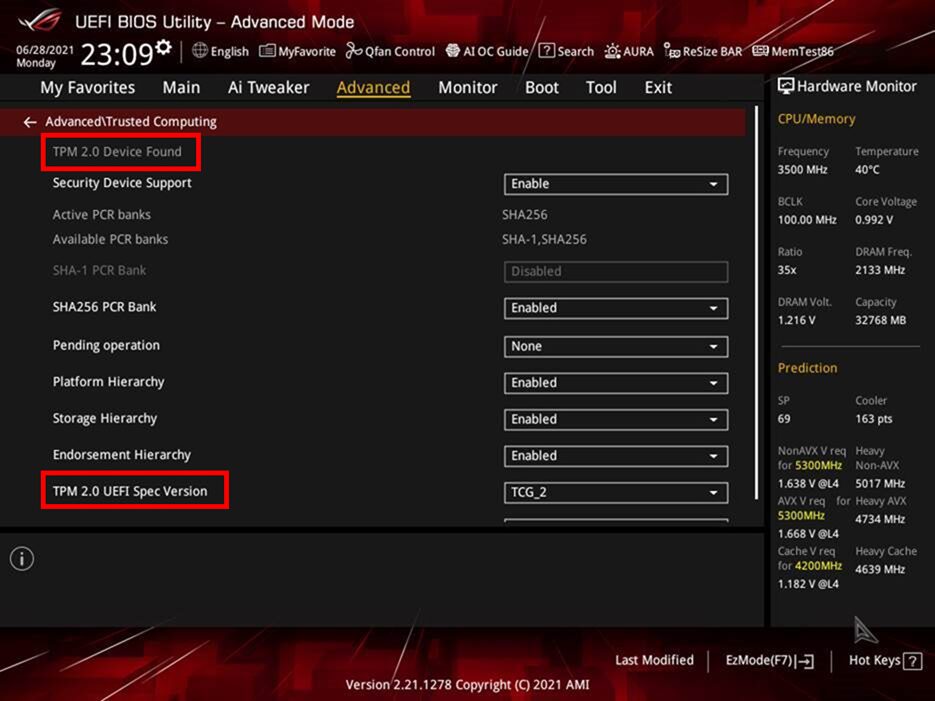
For Intel CPU:
Restart your PC and press Del or F2 to enter BIOS.
Go to Advanced > Trusted Computing.
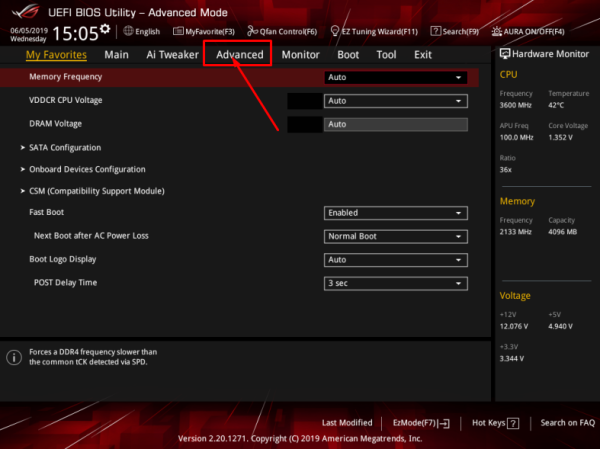
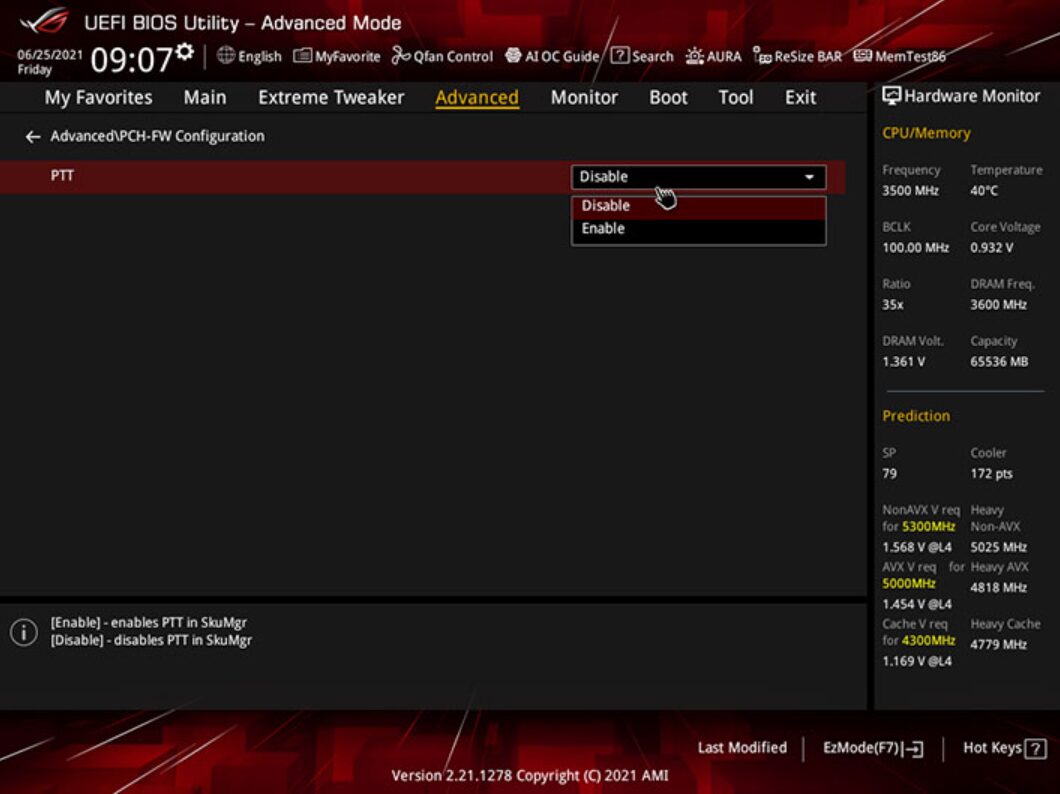
Set Security Device Support to Enable (or PTT for Intel).
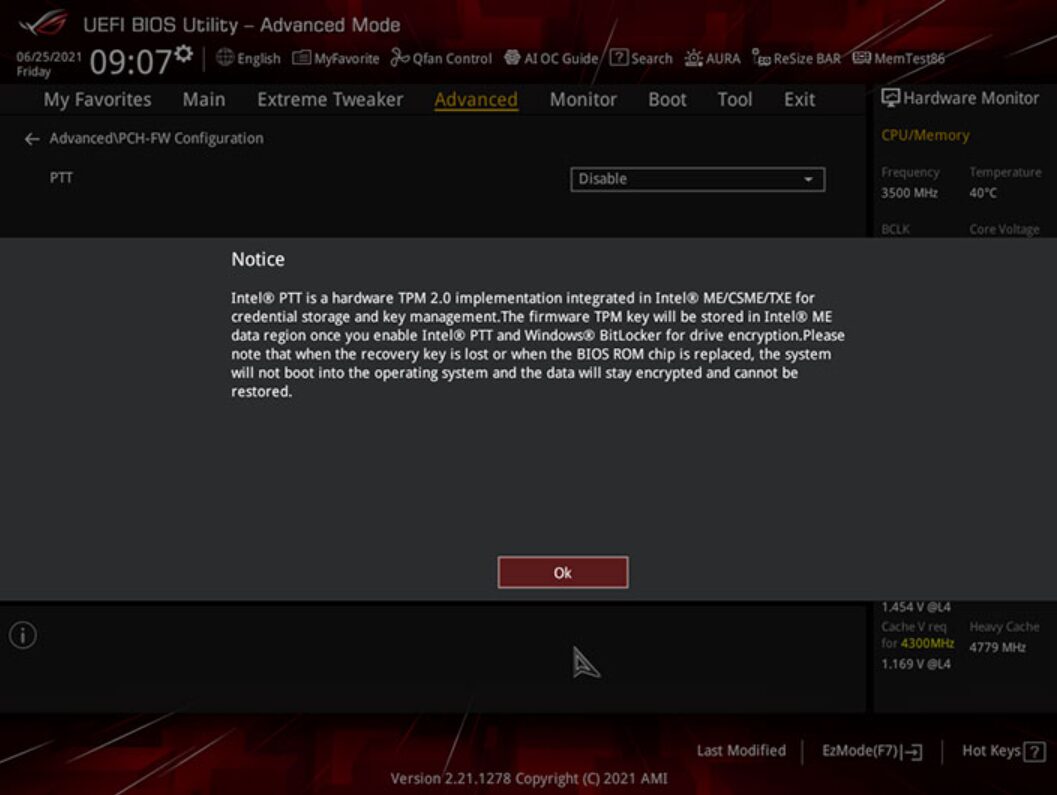
Save and exit (F10).
For AMD CPU:
Restart your PC and press Del or F2 to enter BIOS.
Go to Advanced > AMD fTPM configuration.
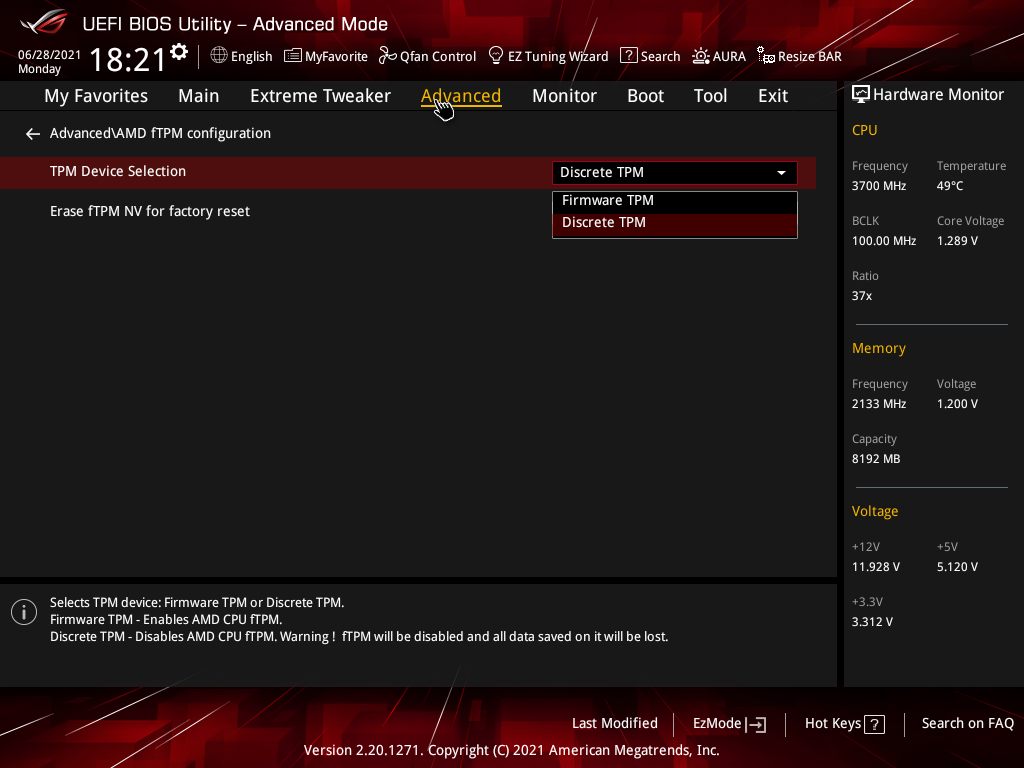
Set TPM Device Selection to Firmware TPM.
Save changes.
Compatible ASUS chipsets:
- B450 / B550 / X570
- Z370 / Z390 / Z490 / Z590 / Z690 / Z790
Step-by-Step Guide: Enabling TPM 2.0 on MSI Motherboards
Restart your pc → Press DEL
Go to Advanced Mode
Navigate to: Settings > Security > Trusted Computing
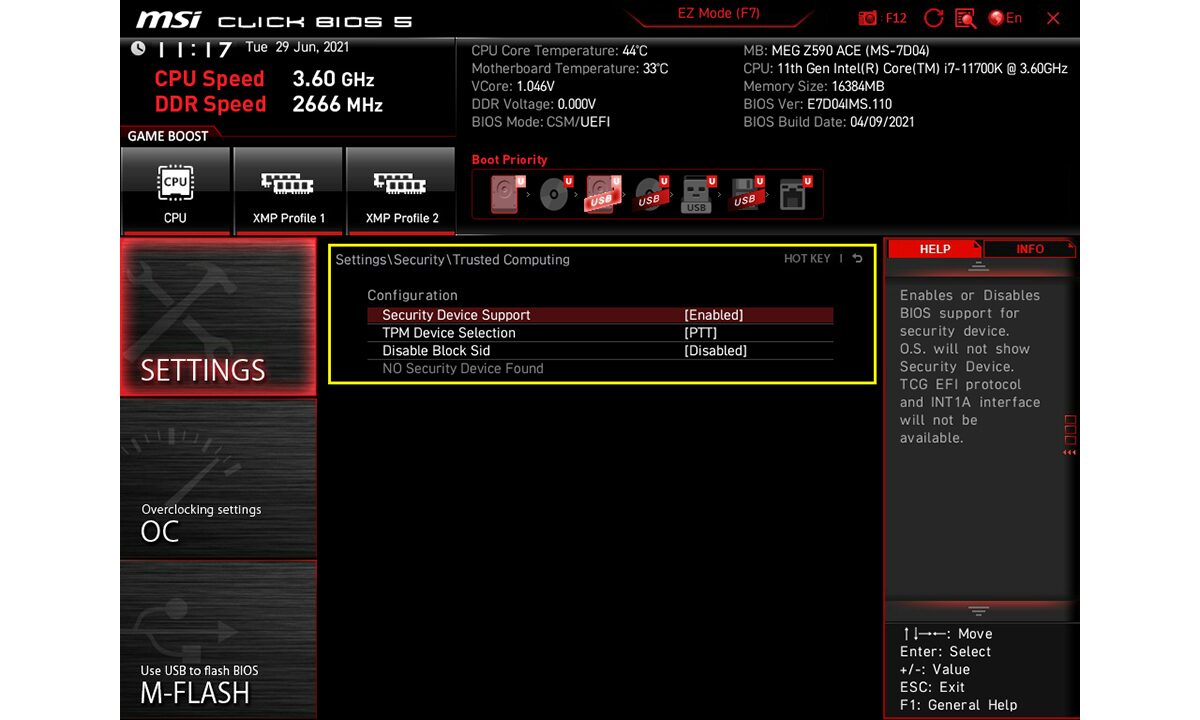
Set:
- Security Device Support → Enabled
- TPM Device Selection → fTPM / PTT
Save & Exit
⚠️ If “Trusted Computing” is missing: Update BIOS to latest version (very common fix)
Step-by-Step Guide: Enabling TPM 2.0 on Gigabyte Motherboards
Restart your pc → Press DEL
Go to Advanced MODE
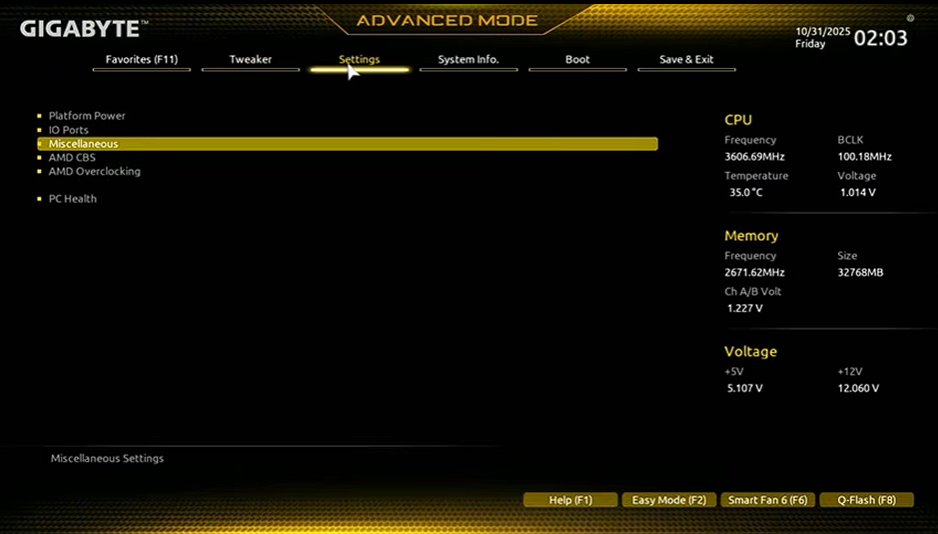
Navigate to: Settings → Miscellaneous
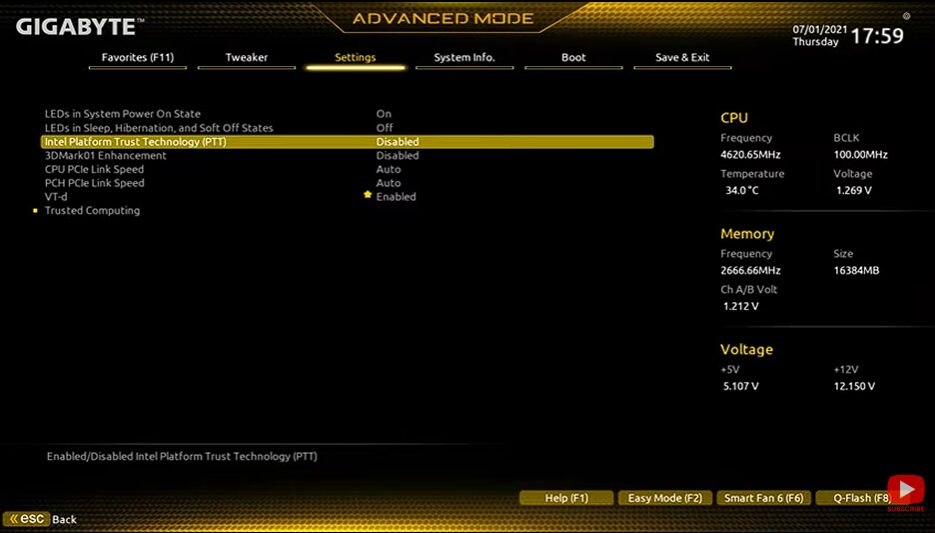
for Intel CPU: enable “Intel Platform Trust Technology (PTT)“
OR
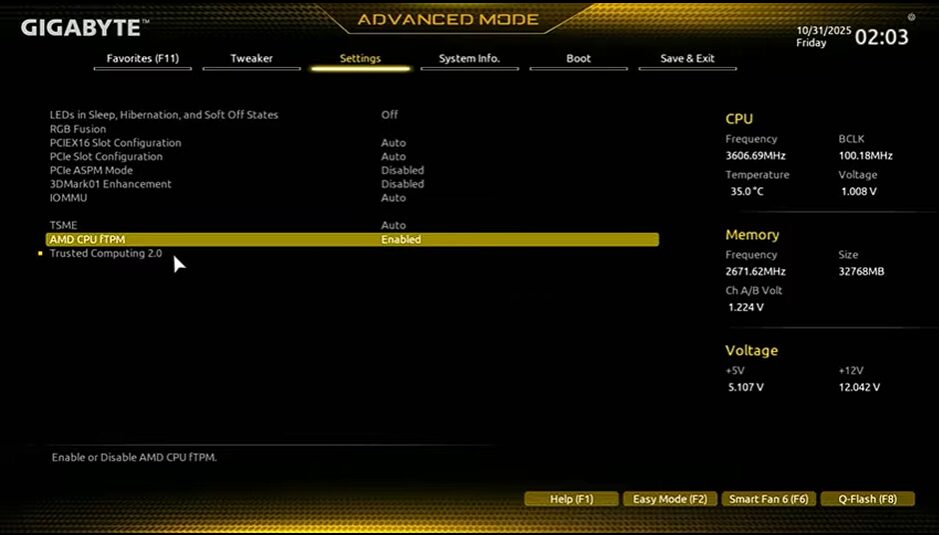
for AMD CPU: enable “AMD CPU fTPM“
Press “F10” on the keyboard Save & Reboot
Supported Gigabyte boards:
- B450 / B550 / X570
- Z390 / Z490 / Z590 / Z690
How to Enable Secure Boot for Valorant, Call of Duty and Others
Since games like Valorant and Call of Duty often require Secure Boot too:
- BIOS → Boot → Secure Boot
- Set:
- OS Type: Windows UEFI Mode
- Secure Boot: Enabled
- Disable CSM (Compatibility Support Module)
Troubleshooting Common TPM 2.0 Problems (And Fixes)
TPM Option Missing in BIOS
✔ Update BIOS
✔ Switch from Legacy to UEFI
✔ Disable CSM
Valorant Still Says TPM Disabled
✔ Secure Boot not enabled
✔ Windows installed in Legacy Mode
✔ Old Windows installation (reinstall may be needed)
AMD fTPM Stuttering Issue
✔ Update motherboard BIOS
✔ Windows 11 patch fixed this issue in later updates
FAQs about Enable TPM 2.0
Does Enabling TPM 2.0 Affect Gaming Performance?
No. TPM 2.0 does not reduce FPS, increase lag, or affect GPU/CPU performance. It runs in the background and only handles security-related tasks.
Can TPM 2.0 cause stuttering on AMD systems?
Older AMD fTPM firmware caused stuttering on some systems, but BIOS updates and Windows patches have fixed this issue. Always keep your BIOS updated.
Is TPM 2.0 required for Valorant?
Yes. Valorant requires TPM 2.0 and Secure Boot on Windows 11. Riot Games uses hardware-level security to prevent kernel-level cheats, and TPM 2.0 is mandatory for this protection.
Does Call of Duty require TPM 2.0?
Call of Duty itself doesn’t always show a TPM error, but Windows 11 requires TPM 2.0, and COD’s anti-cheat benefits from it. Enabling TPM ensures better compatibility and fewer launch issues.
Do I also need to enable Secure Boot?
Yes. TPM 2.0 alone is not enough for Valorant. Secure Boot must be enabled, and CSM must be disabled for full compatibility.
Final Verdict
If you’re a gamer facing errors in Valorant, Call of Duty, or Cyberpunk 2077, enabling TPM 2.0 and Secure Boot is no longer optional—it’s mandatory.
With the step-by-step motherboard-specific instructions above, you can safely enable TPM 2.0 on ASUS, MSI, or Gigabyte systems in under 5 minutes, even as a beginner.