Best External GPU for Laptops in 2026 – Top Picks, Setup Guide & Boost Your Laptop Performance Instantly
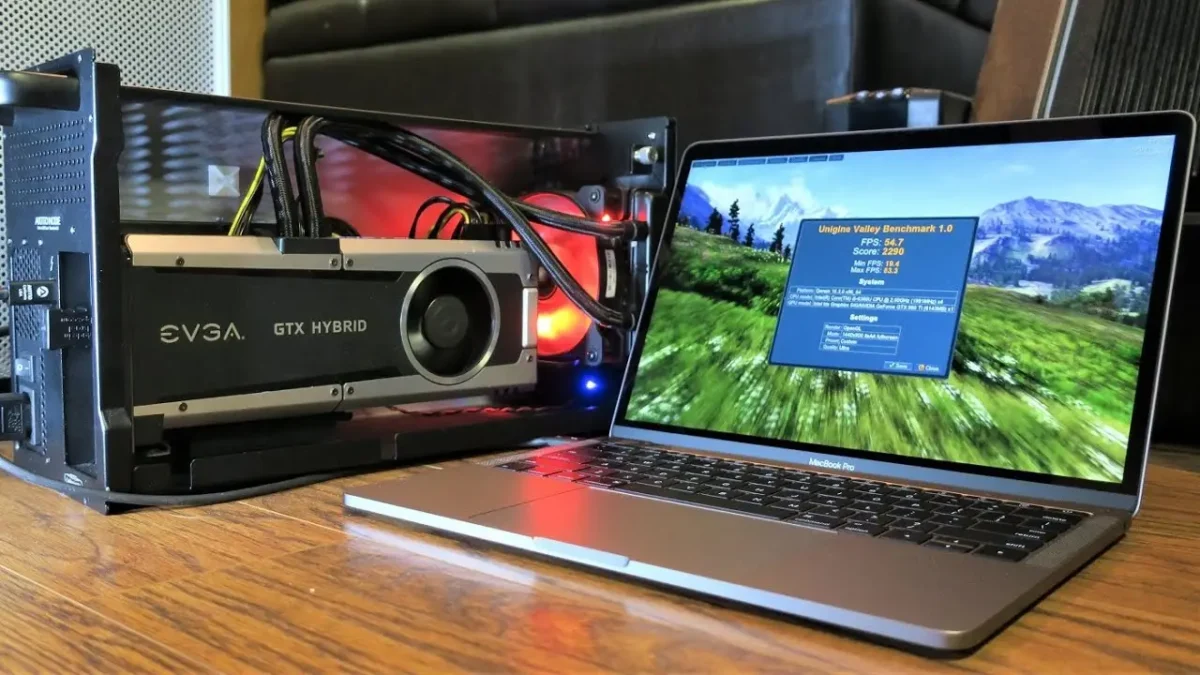
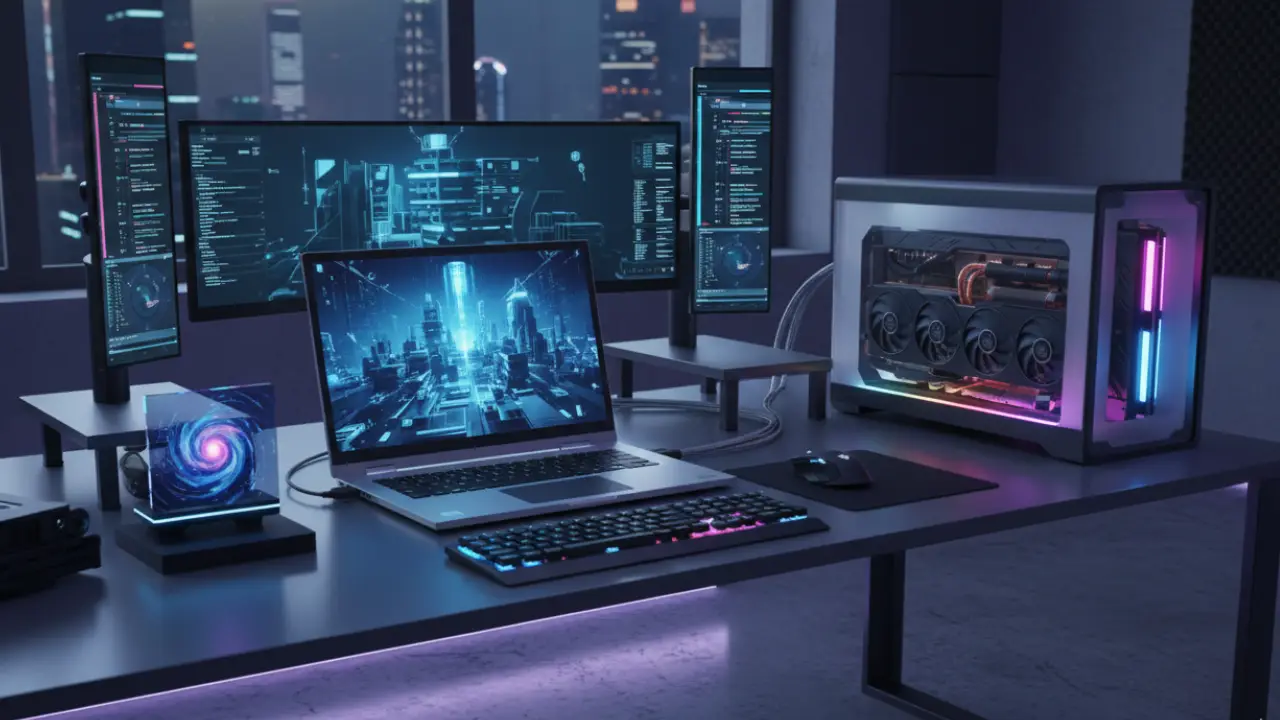
If your laptop struggles with gaming, video editing, or AI workloads, an external GPU (eGPU) can instantly transform its performance. External GPUs allow you to connect a desktop-grade graphics card to your laptop via Thunderbolt or USB-C, giving you high-end graphics capabilities without buying a new laptop.
In this guide, we’ll cover everything you need to know about external GPU for laptops, including setup, compatibility, performance expectations, and the best eGPUs available in 2026.
JUMP LIST
- What Is an External GPU (eGPU) and How Does It Work?
- Best External GPUs for Laptops
- 3. Sonnet eGPU Breakaway Box 750
- 4. MINISFORUM DEG1 External GPU Dock (Oculink)
- How to Check If Your Laptop Supports an eGPU
- Buyer’s Guide: Choosing the Best eGPU for Your Laptop
- Step-by-Step Setup Guide for Your External eGPU on Your Laptop
- Thunderbolt 4 vs Thunderbolt 5
- eGPU Software and Driver Requirements
- Conclusion: Is an External GPU for Laptop Right for You?
- FAQs about External GPU for Laptop
What Is an External GPU (eGPU) and How Does It Work?
An external GPU (eGPU) is a dedicated graphics solution that allows you to connect a desktop-grade GPU to your laptop through a high-speed interface. Instead of relying on your laptop’s built-in graphics—which are limited by thermal design and power constraints—an eGPU uses its own power supply and cooling inside a compact external enclosure. This setup delivers up to 80–90% of true desktop GPU performance, without opening your laptop or upgrading internal components.
By 2026, eGPU technology has matured significantly. The introduction of Thunderbolt 5, with speeds of up to 120Gbps bidirectional, has eliminated many of the bottlenecks that held older eGPU setups back. This new bandwidth standard allows laptops from brands like ASUS, Razer, Lenovo, HP, and Apple to connect seamlessly to high-end graphics cards—making eGPUs more practical and mainstream than ever.
What Can You Do with an eGPU?
- 🎮 Gaming: Play modern AAA titles with ray tracing at 1440p or even 4K, often exceeding 100+ FPS depending on the GPU.
- 🎬 Content Creation: Speed up Premiere Pro exports, After Effects previews, or Blender simulations with GPU acceleration.
- 🤖 AI & Machine Learning: Offload tensor and CUDA computations to handle larger models and datasets smoothly.
- 🧑💻 Professional Workloads: Improve performance in CAD software, 3D modeling, data visualization, and even VR development on the go.
Smaller, Lighter, and Easier Than Before
Earlier eGPU setups were bulky and slow. But now, manufacturers have shifted toward ultra-compact enclosures, with some weighing under 2 pounds while still supporting powerful GPUs like the RTX 4080 or RX 7900 series. Many models are now plug-and-play, requiring minimal driver configuration.
Best External GPUs for Laptops
Based on 2025 benchmarks and early 2026 releases, here are the standout options. We’ve prioritized portability, value, and real-world performance.
1. Razer Core X V2 External Graphics Enclosure (eGPU)
Best Overall eGPU for Modern Windows Laptops
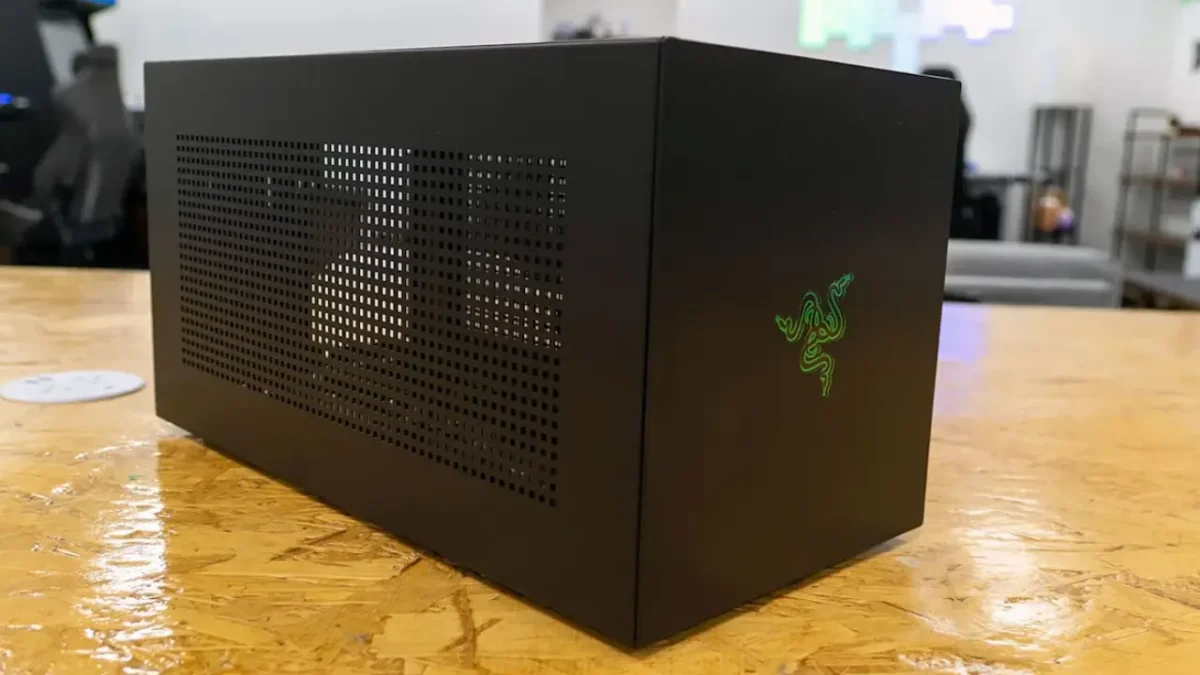
The Razer Core X V2 stands out as the most well-rounded and widely compatible external GPU enclosure in 2026. It supports full-size 4-slot NVIDIA and AMD GPUs, offers PCIe 4.0 performance, and delivers up to 140W USB-C power delivery—enough to charge most high-performance laptops. With Thunderbolt 4, USB4, and Thunderbolt 5 support, it’s a future-proof investment for gamers and creators.
Key Features
- Supports extra-wide 4-slot GPUs (RTX 4090, RX 7900 series)
- PCIe 4.0 GPU compatibility
- Thunderbolt 4/5 & USB4 connectivity
- 140W USB-C Power Delivery
- Premium aluminum enclosure & optimized airflow
Pros
- Broad laptop compatibility (Windows 11)
- Charges your laptop while you work or game
- Supports large desktop-class GPUs
- Excellent thermals and quiet operation
Cons
- Not very portable
- Limited macOS support
Best For: Gamers, video editors, AI users, and professionals seeking maximum desktop-level performance from their laptops.
2. ASUS ROG XG Mobile – RTX 5070 Ti
Best Portable eGPU for ASUS ROG Flow Laptops
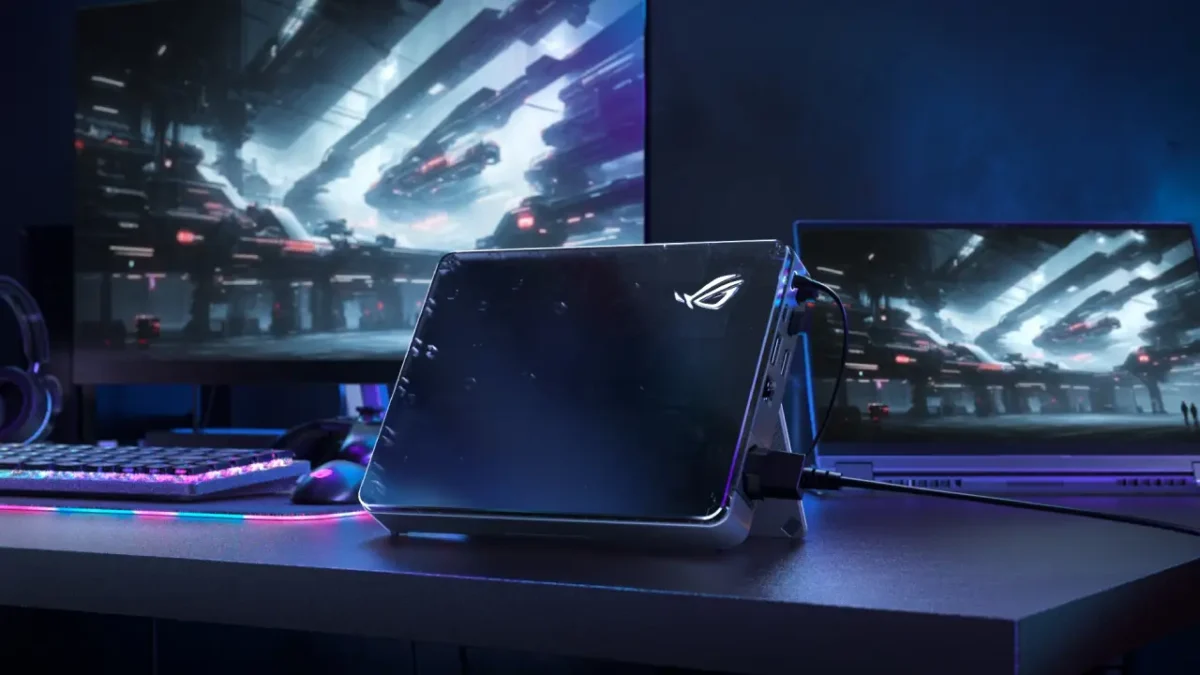
The ASUS ROG XG Mobile (2025) remains the fastest ultra-compact eGPU on the market. Powered by an NVIDIA GeForce RTX 5070 Ti, it uses ASUS’s high-bandwidth Thunderbolt 5-based proprietary connector, delivering significantly lower latency than traditional eGPU enclosures. It’s designed exclusively for ROG Flow devices such as the Flow X13, X16, and Z13.
Key Features
- RTX 5070 Ti mobile GPU
- High-speed Thunderbolt 5-based interface
- Extremely compact and travel-friendly design
- Built-in I/O expansion (USB, HDMI, LAN)
- Designed for ASUS ROG Flow lineup
Pros
- Near-desktop gaming performance
- Lightweight and portable
- Doubles as a full docking station
- Zero compatibility issues with Flow laptops
Cons
- Only works with ROG Flow devices
- More expensive compared to standard eGPUs
Best For: Travel-friendly power users who want a compact, plug-and-play GPU upgrade with desktop-grade performance.
3. Sonnet eGPU Breakaway Box 750
Best Budget-Friendly eGPU for Windows & Intel Macs
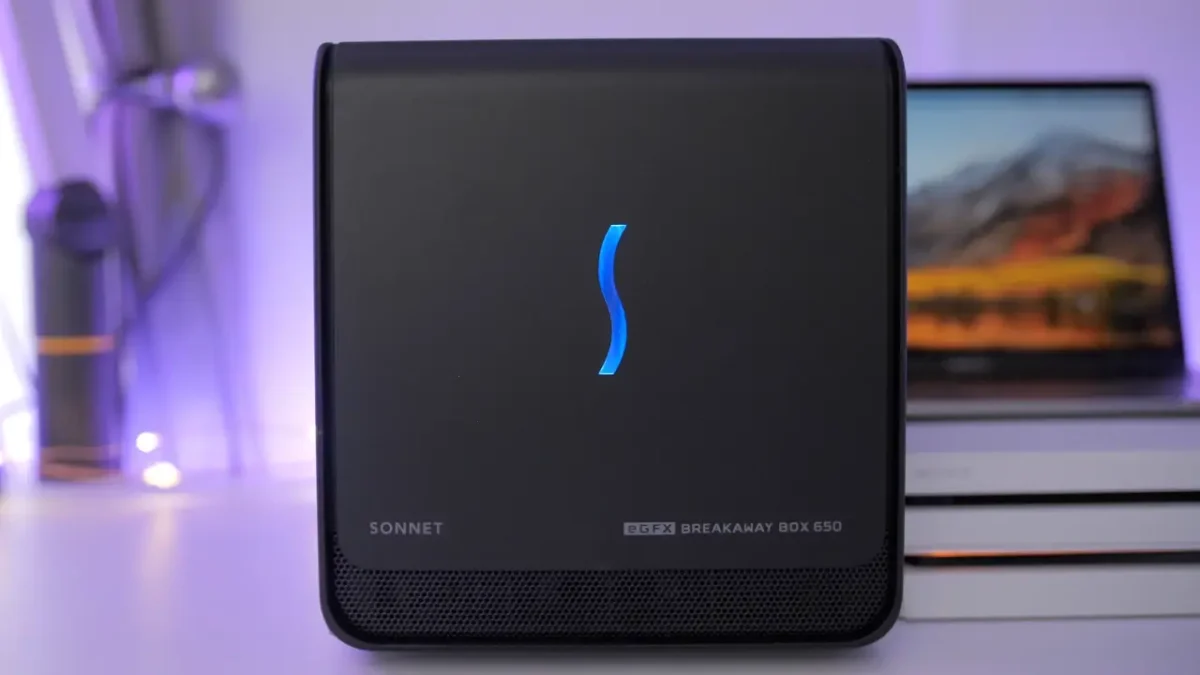
The Sonnet Breakaway Box 750 is a highly reliable and quiet external GPU enclosure built for creators and gamers. Its 750W power supply supports high-power GPUs like the RTX 4080 and RX 7900 XT. While it does not support Apple Silicon (M1/M2/M3) Macs, it works flawlessly with Windows laptops and older Intel-based MacBook Pros.
Key Features
- 750W built-in PSU
- Supports GPUs up to 300W+
- Quiet, efficient cooling system
- Compatible with Windows & Intel MacOS
- Sturdy, stable design
Pros
- Great value for the power
- Very quiet under load
- Supports large GPUs
- Reliable long-term performance
Cons
- Not compatible with Apple Silicon
- Bulkier than compact eGPU models
Best For: Editors, 3D artists, and gamers who want a stable, affordable, and workstation-ready eGPU enclosure.
4. MINISFORUM DEG1 External GPU Dock (Oculink)
Fastest Performance eGPU for Enthusiasts & AI Workloads
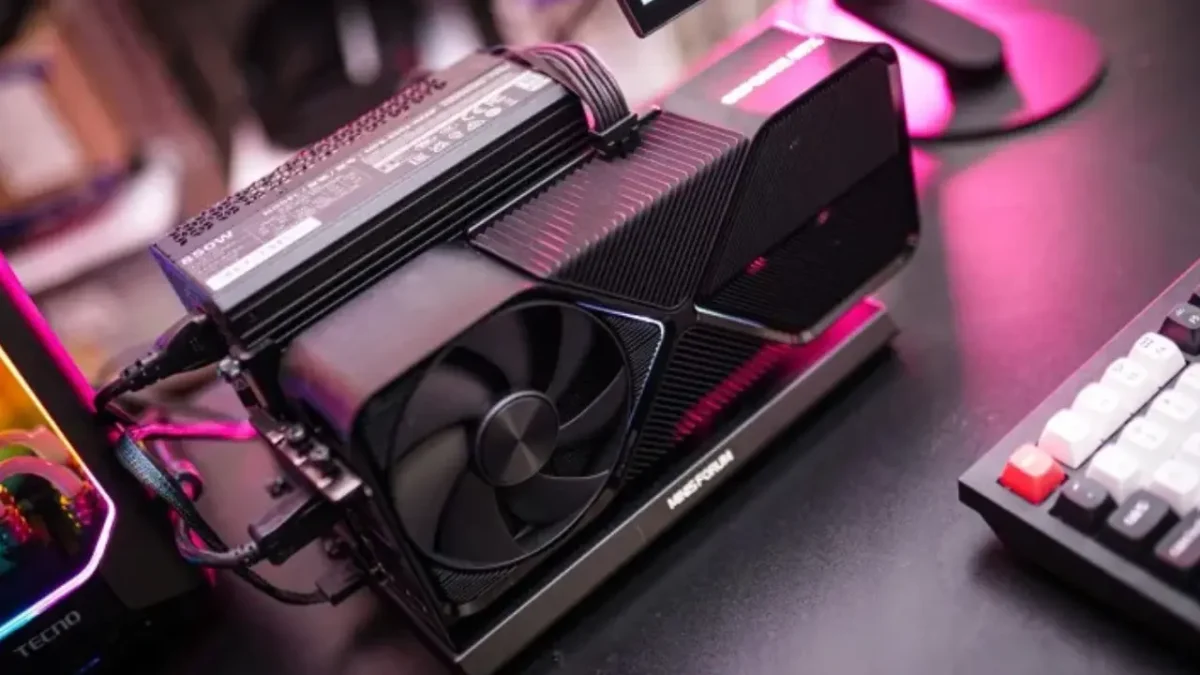
The MINISFORUM DEG1 is a performance-first eGPU dock designed for maximum bandwidth. Using Oculink, which offers faster and lower-latency performance than Thunderbolt, the DEG1 supports flagship GPUs like the RTX 4090 and RX 7900 XTX. It’s compatible with both ATX and SFX power supplies, making it the most customizable eGPU option for advanced users.
Key Features
- High-bandwidth Oculink interface
- Supports RTX 4090 / RX 7900 XTX
- ATX/SFX power supply compatibility
- Metal enclosure for improved cooling
- Ideal for mini PCs and Oculink laptops
Pros
- Highest real-world GPU performance
- Supports ultra-high-end GPUs
- Highly customizable power & cooling
- Lower latency than Thunderbolt eGPUs
Cons
- Requires an Oculink port
- More DIY than plug-and-play
- Not beginner-friendly
Best For: Enthusiasts, AI researchers, and engineers who need true desktop-grade GPU performance from an external dock.
Also read Best Lightweight Laptops Under $1000
How to Check If Your Laptop Supports an eGPU
Not every laptop can use an external GPU. Follow these quick steps to check compatibility:
- Check the Ports: Look for a Thunderbolt 3, 4, 5, or USB4 port (⚡ symbol). Standard USB-C alone is usually insufficient.
- Verify Bandwidth: Higher bandwidth ensures better performance. Thunderbolt 3/4 supports most GPUs; Thunderbolt 5 is ideal for high-end cards like RTX 4080/4090.
- Confirm OS Support: Windows laptops support most NVIDIA/AMD eGPUs. Intel Macs support AMD eGPUs; Apple Silicon (M1/M2/M3) does not.
- System Tools:
- Windows:
Win + R → msinfo32 → Components → Display - Mac:
Apple Menu → About This Mac → System Report → Thunderbolt
- Windows:
- Consult Compatibility Lists: Use official and community sources like Razer eGPU Support or eGPU.io.
Tip: If your laptop lacks Thunderbolt or Oculink, an eGPU won’t perform well—consider a laptop with a discrete GPU instead.
Buyer’s Guide: Choosing the Best eGPU for Your Laptop
Selecting the right eGPU depends on compatibility, performance needs, and budget.
- Check Compatibility: Make sure your laptop has Thunderbolt 3/4/5 or USB4. Windows and Intel Macs support most eGPUs; Apple Silicon Macs do not. Modern CPUs (Intel 12th-gen / Ryzen 7000) reduce bottlenecks.
- Enclosure vs All-in-One:
- Enclosures: Buy separately and pair with your GPU (customizable).
- All-in-One: Prebuilt units (plug-and-play) like ASUS ROG XG Mobile.
- Power & Cooling: Look for 650W+ PSU and active cooling to handle high-end GPUs without throttling.
- Budget Tiers:
- Entry: $300–$500 (mid-range GPUs)
- Mid: $500–$800 (high-performance gaming/creation)
- High: $800+ (RTX 4090/RX 7900 XTX, professional workloads)
Tip: Prioritize portability, future GPU upgrades, and extra I/O ports for best value.
Step-by-Step Setup Guide for Your External eGPU on Your Laptop
Getting started is straightforward:
- Check Compatibility: Ensure your laptop supports Thunderbolt 3/4.
- Assemble Hardware: Carefully install GPU in enclosure; connect power and data cables.
- Connect to Laptop: Plug into Thunderbolt/USB4 port—Download and install GPU drivers (Windows/Mac).
- Configure Software: Update NVIDIA/AMD drivers; enable external display in BIOS if needed.
- Test and Optimize: Run benchmarks (e.g., 3DMark) and tweak power limits via MSI Afterburner.
Pro Tip: For optimal performance, use a powered dock for extra I/O.
Thunderbolt 4 vs Thunderbolt 5
In 2026, Thunderbolt 5 has become the preferred standard for external GPUs, offering up to 120Gbps bidirectional bandwidth, nearly double the 40Gbps of Thunderbolt 4. This increase allows eGPUs to achieve closer to desktop-level performance, especially for high-end GPUs like the RTX 4090 or RX 7900 XTX.
Key Differences:
- Thunderbolt 4: Supports 40Gbps, PCIe 3.0 lanes, works with most mid-to-high-end eGPUs.
- Thunderbolt 5: 120Gbps, PCIe 4.0/5.0 ready, reduces latency, ideal for gaming, 4K/8K editing, and AI workloads.
Recommendation: If your laptop supports Thunderbolt 5, pairing it with a modern eGPU delivers the best FPS, rendering speed, and compute performance.
If you want to learn more about the differences between Thunderbolt 4 and Thunderbolt 5, check out our detailed guide on Thunderbolt 4 vs Thunderbolt 5 for eGPUs
eGPU Software and Driver Requirements
To get the best performance from an external GPU, you need the correct drivers and software installed. Here’s what you need:
1. NVIDIA eGPU Setup
- NVIDIA GeForce Drivers: Download here
- GeForce Experience (optional): Optimizes gaming and updates GPU drivers automatically.
2. AMD eGPU Setup
- AMD Radeon Software: Download here
- Supports Radeon GPUs in eGPU enclosures and includes performance tuning.
3. Thunderbolt / Oculink Drivers
- Ensure your laptop has the latest Thunderbolt firmware for proper eGPU detection: Intel Thunderbolt Drivers
- For Oculink-based eGPUs, check the manufacturer’s site for driver updates.
4. Windows & macOS Requirements
- Windows: Windows 10 64-bit or later
- macOS: Intel Macs with macOS 11+ (M1/M2/M3 Apple Silicon currently limited)
Tip: Always install the latest GPU and Thunderbolt drivers before connecting your eGPU to avoid detection issues and maximize performance.
Conclusion: Is an External GPU for Laptop Right for You?
In 2026, an external GPU for laptop isn’t just an accessory—it’s a strategic upgrade for unlocking untapped potential. From the versatile ASUS ROG XG Mobile to budget-friendly Razer Core X V2, options abound to fit every need. If your laptop chokes on demanding apps, invest now to future-proof against price surges and tech leaps.
Ready to level up? Check compatibility, pick your enclosure, and transform your setup. For the latest deals, browse trusted retailers like Amazon or Newegg. What’s your next move—gaming glory or creative mastery? Share in the comments!
FAQs about External GPU for Laptop
What is an external GPU (eGPU) and how does it work?
An external GPU (eGPU) is a desktop-class graphics card housed in an external enclosure that connects to your laptop via Thunderbolt 4, Thunderbolt 5, or USB4. It allows laptops with weaker internal GPUs to achieve near-desktop performance for gaming, video editing, and AI workloads.
Do all laptops support external GPUs?
A: No. To use an eGPU, your laptop must have a Thunderbolt 3, Thunderbolt 4, Thunderbolt 5, or Oculink port. Windows laptops with these ports and Intel Macs (pre-M1) are compatible. Apple M1/M2/M3 laptops currently have limited eGPU support.
Can eGPUs improve gaming performance?
Yes. An eGPU can significantly boost FPS and graphics settings in AAA games, especially at 1440p or 4K. The performance depends on your GPU model, Thunderbolt version, and laptop CPU.
Can I use an eGPU for video editing or 3D rendering?
Absolutely. eGPUs accelerate GPU-intensive applications like Adobe Premiere Pro, After Effects, Blender, and CAD software, reducing render times and improving real-time previews.